 Quonet
Your server, your data
Connections are set up by your own Quonet server. Nothing passes through a third-party service.
Private preview
Quonet connects your team to any Windows or Mac computer. Sessions are encrypted end to end and run through a server you control, not someone else's cloud.
Available by invitation. Write to sale@getmarsic.cc to get access.
Connections are set up by your own Quonet server. Nothing passes through a third-party service.
Control Windows 11 from a Mac, or the other way round, with keyboard, mouse and screen.
Computers connect directly whenever they can. The relay only steps in on strict networks.
Install the app, paste three settings, connect. We show you exactly what to type.
Quonet is in private preview, and doesn't have access yet.
To use Quonet for your team, contact our sales team.
Contact sale@getmarsic.ccMake a link for a customer. It opens the setup page below (downloads and steps, no sign-in, no server details). You see how often it was opened and can turn it off at any time.
Anyone who has a link can set up computers on your Quonet server, so send it only to that customer. Turning a link off stops new setups; computers already set up keep working.
| Name | Status | Opened | Ends | |
|---|---|---|---|---|
| No links yet. | ||||
Quonet setup
Follow the steps for your computer. It takes about two minutes.
Quonet uses the free RustDesk app (version ). Each computer needs it once: the one you control from, and the one you want to control.
It holds this server's address and key. RustDesk fills in its settings from it.
–
This is the official RustDesk installer, saved under a name that carries your setup code. Keep the file name as it is.
Didn't work, or RustDesk is already installed? Follow the Mac steps: they are the same on Windows.
Not sure? Apple menu > About This Mac: "Chip Apple…" means Apple chip.
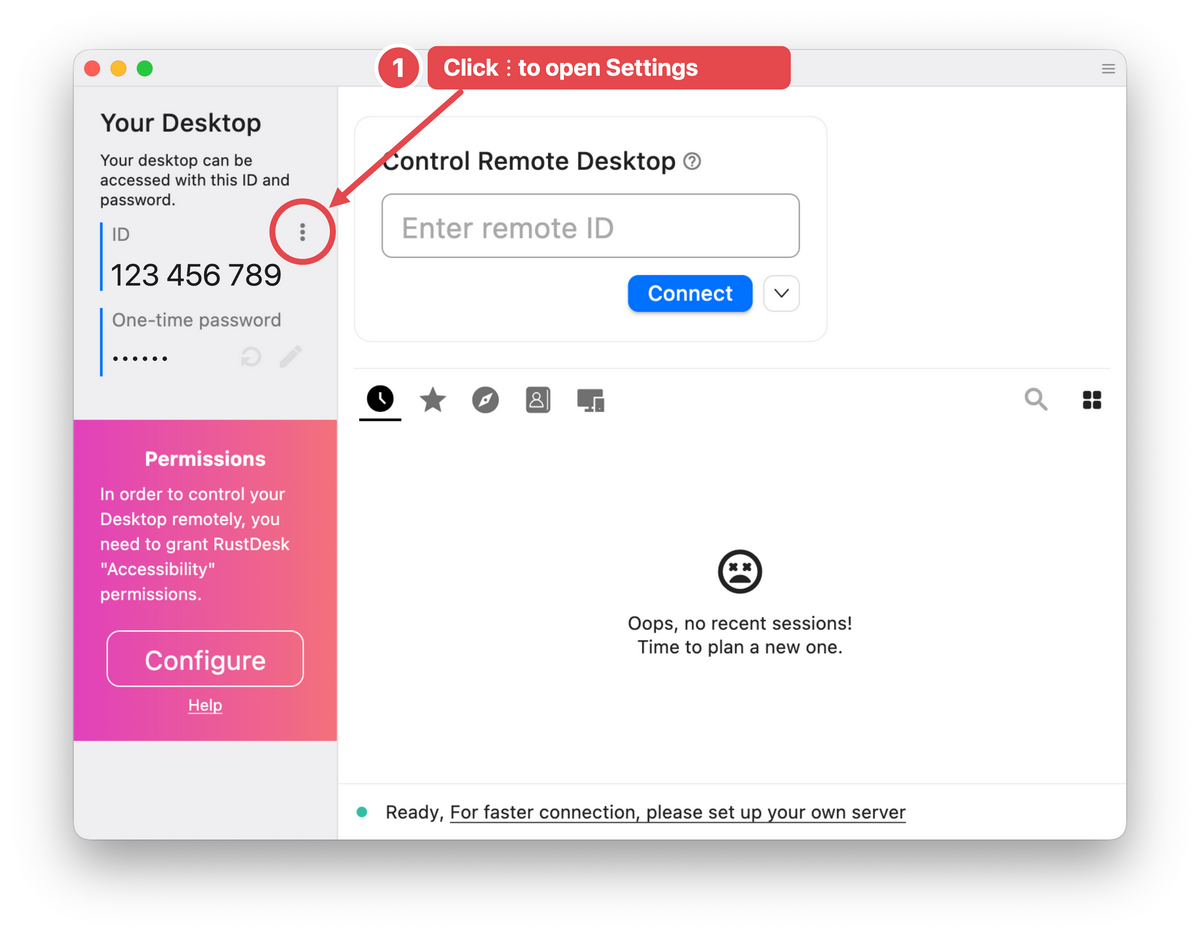
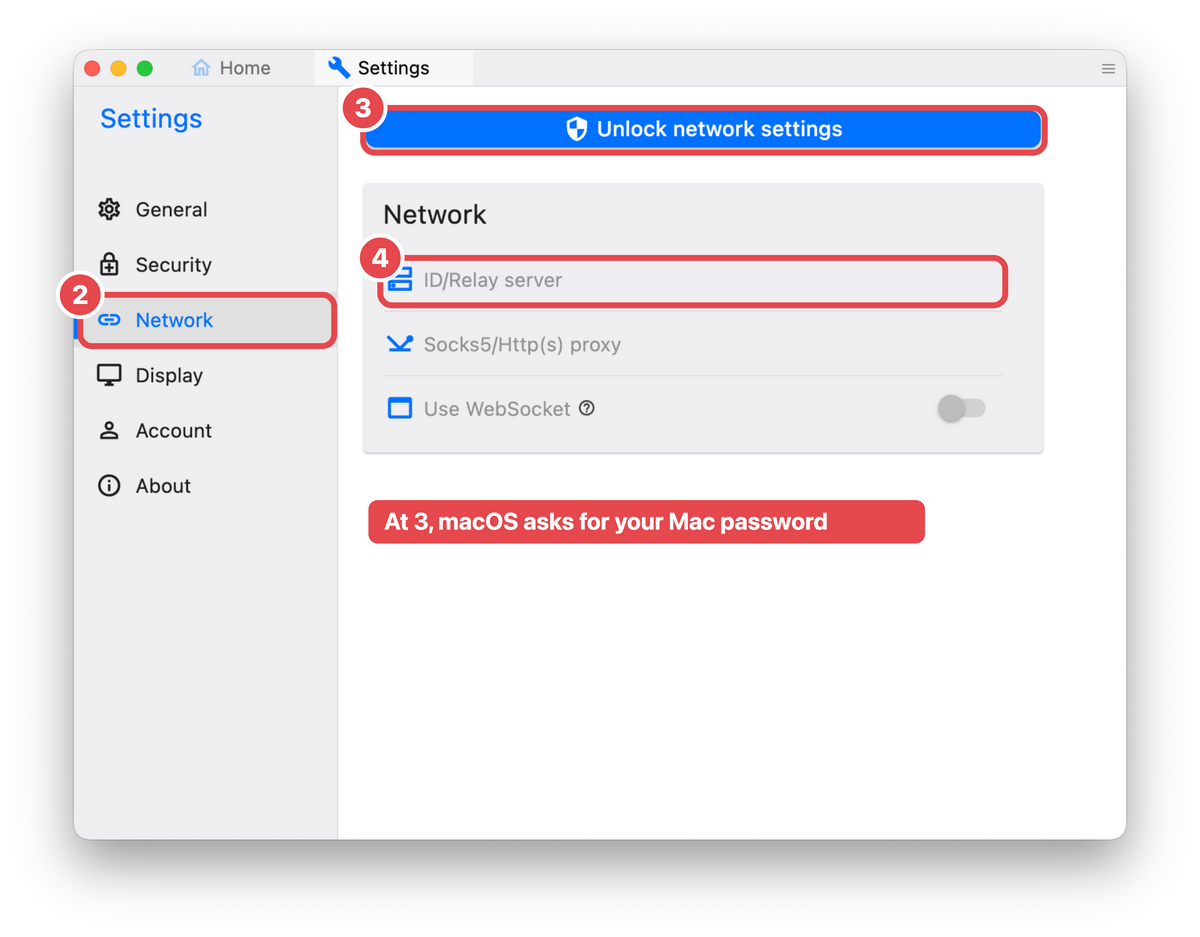
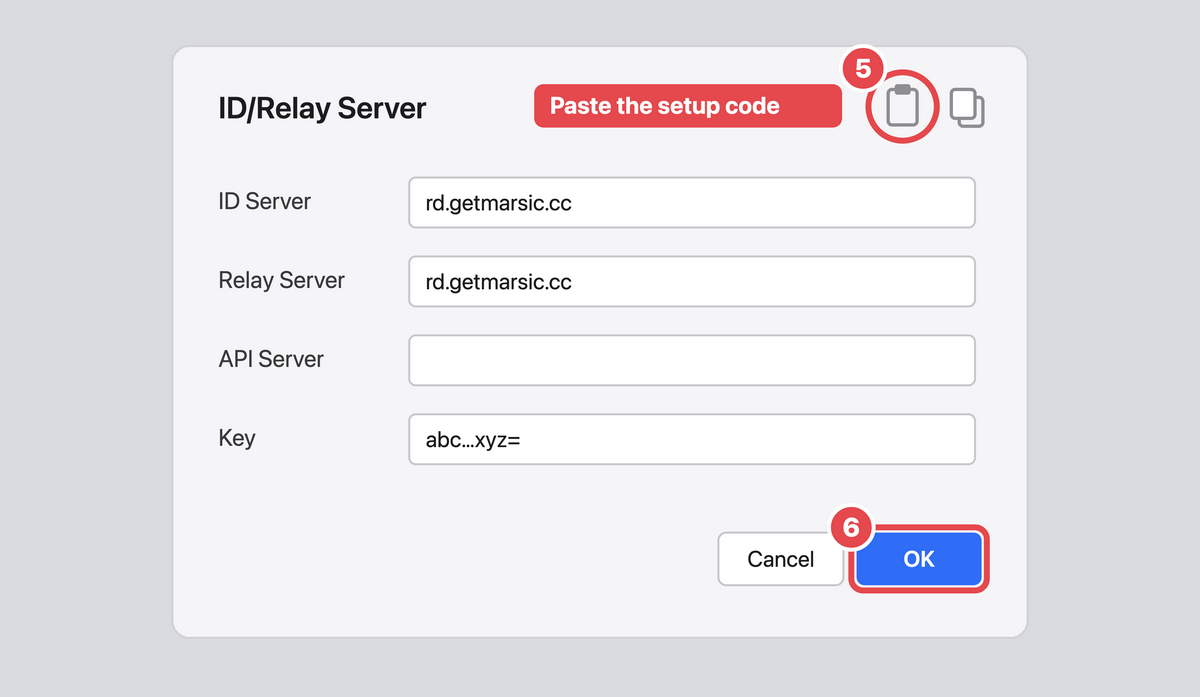
Back on the main window, the bottom says Ready.
–––On the computer you want to control, read its ID and one-time password in RustDesk. On your computer, type that ID under Control Remote Desktop, click Connect, then enter the password.
Ask the person who sent it for a new link, or write to us.
Contact sale@getmarsic.cc